How to Connect the Ezlo Shut-Off Water Valve [Z-Wave Client] with Hubitat
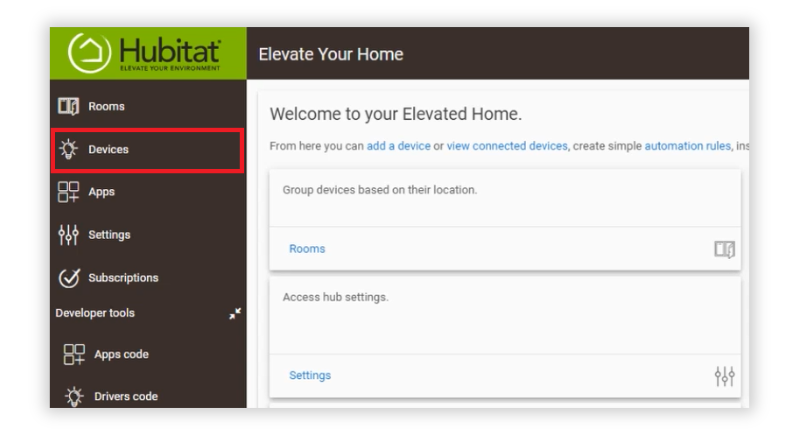
From the Hubitat web portal, go to the Devices menu located on the left side
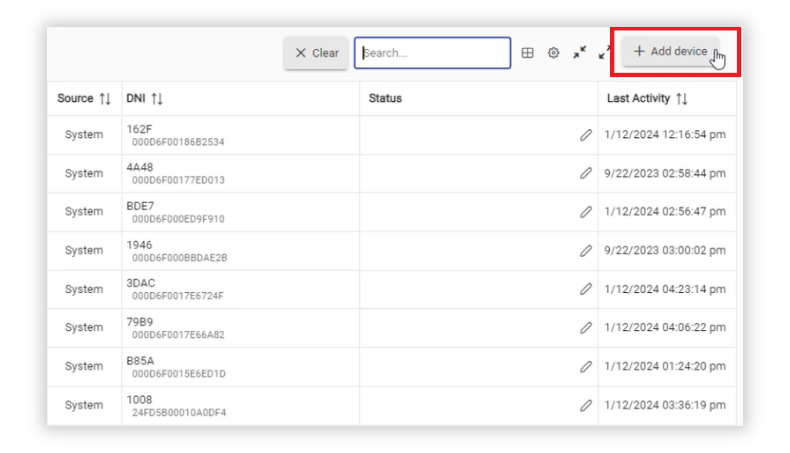
The devices paired with Hubitat will be listed. Then, go to the upper right corner and click on + Add device
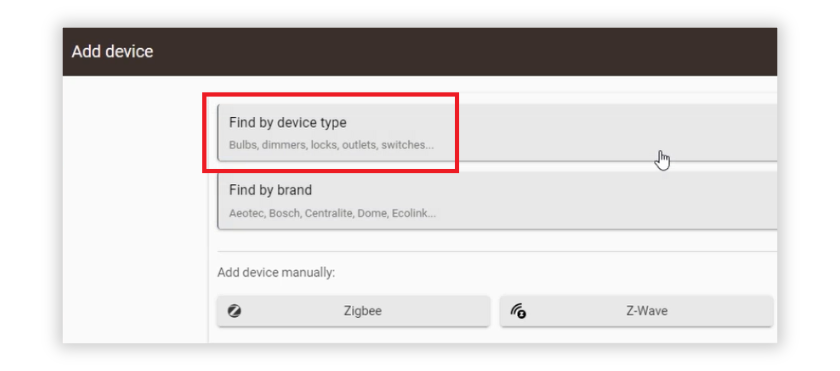
Two options will be displayed. In this case, select Find by device type
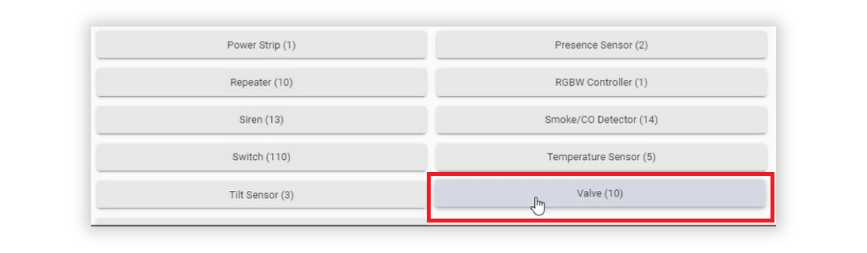
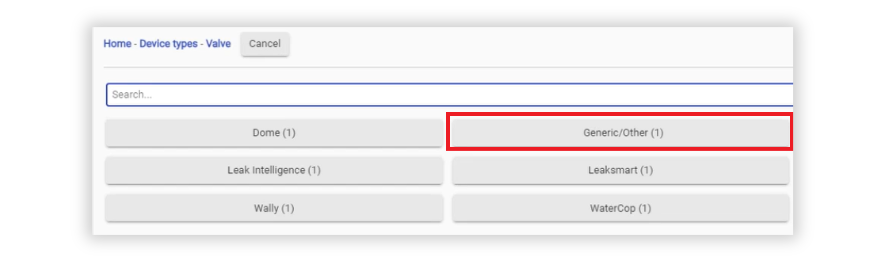
In the Devices type menu, scroll down to the end and select Valve
Click on Generic/Other
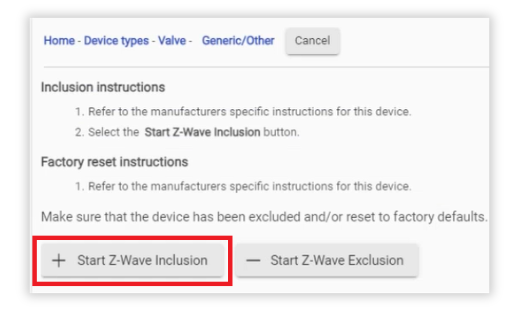
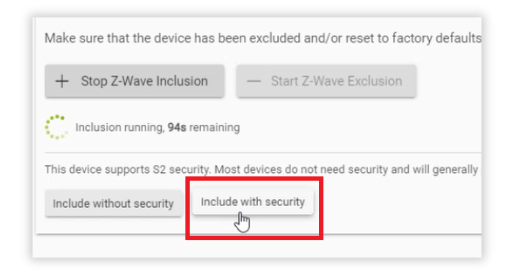
Click on the Start Z-Wave Inclusion button and then select Include with security
 |
 |
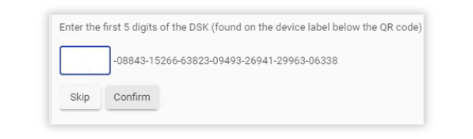
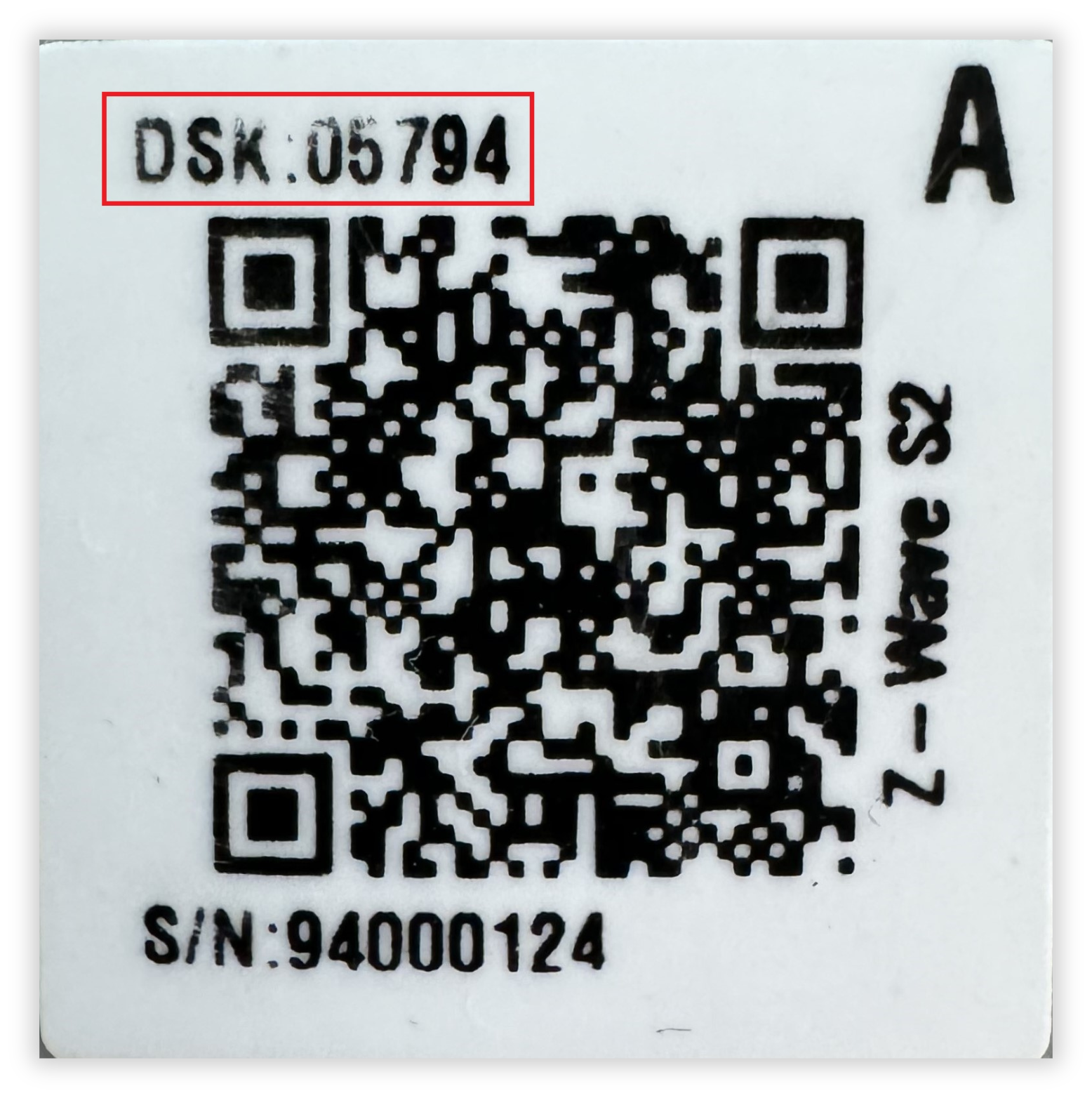
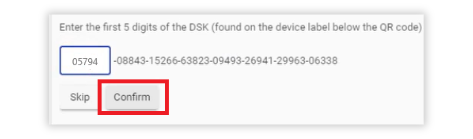
You will be prompted for the first 5 digits of the DSK code, which you can find next to the QR code at the bottom of the Ezlo Water Valve. Enter the 5 digits and click on Confirm
 |
 |
 |
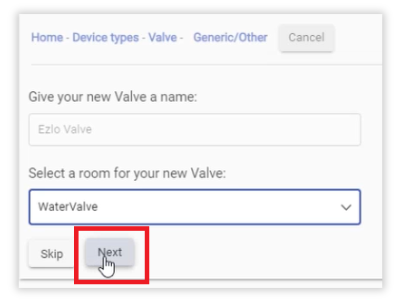
After a few seconds, the Water Valve will be detected, and you can give it the preferred name and assign it to a specific room. Click on Next
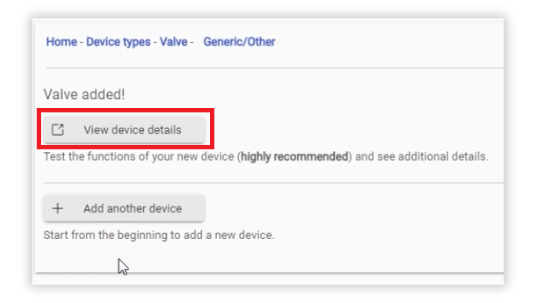
A message confirming that the valve has been successfully added will appear. Click on View device details
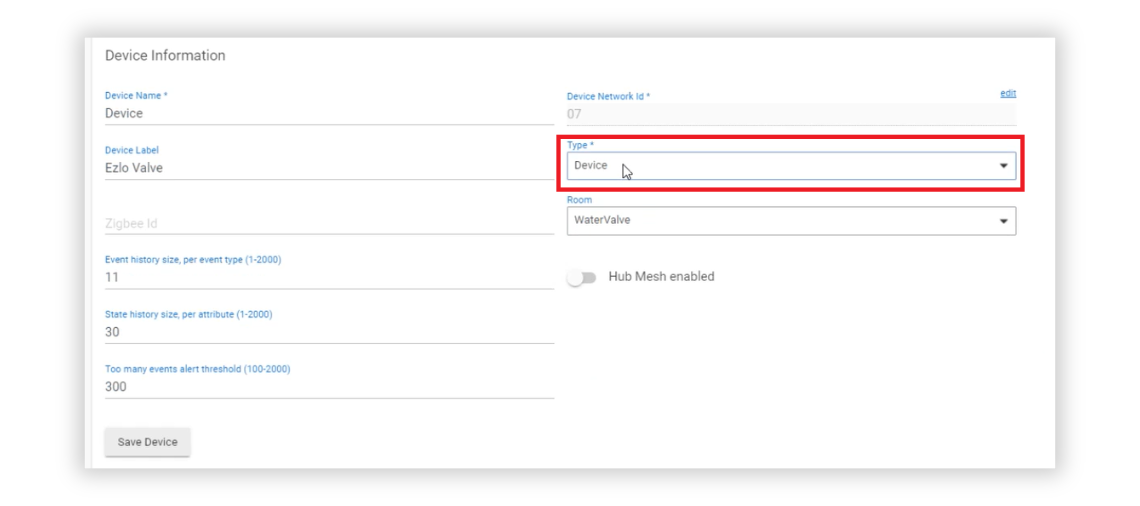
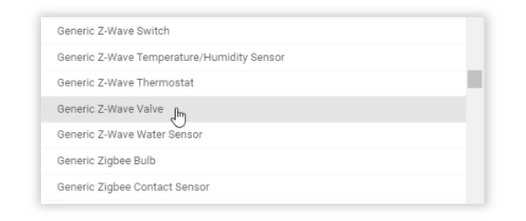
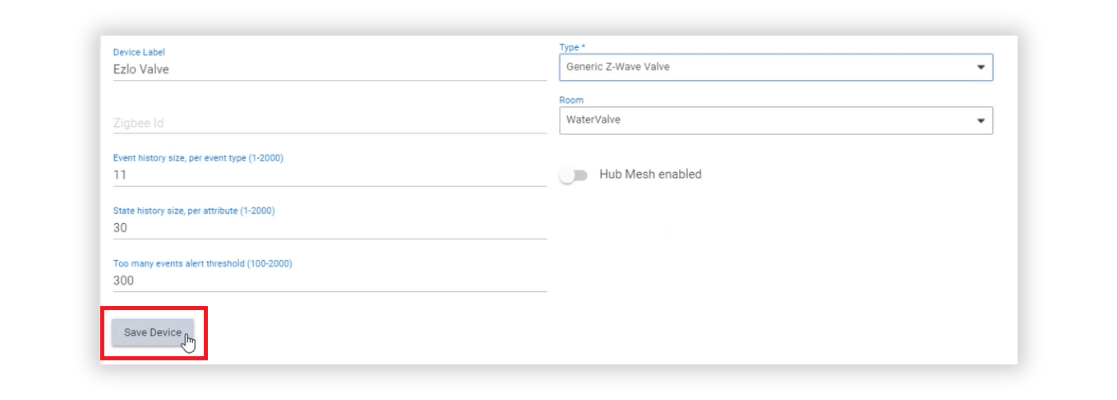
Under the Device Information section, ensure that the Type selected is Generic Z-Wave Valve and click on Save Device.
The Water Valve is now included and fully configured to be operated.
